

Creating HTTP Actions
This guide walks through creating an HTTP Action — from basic configuration to testing and output mapping.Prerequisites: You need a Flowripple account and at least one project.
Creating an HTTP Action
1
Navigate to HTTP Actions
In your project dashboard, go to HTTP Actions in the sidebar navigation.
2
Click Create HTTP Action
Click the “Create HTTP Action” button to open the creation form.
3
Configure the action
Fill in the basic info, request configuration, input variables, and authentication as described in the sections below.
4
Test the action
Use the test panel to run a test request with sample input values.
5
Map outputs
Click ”+” on values in the test response to create output mappings.
6
Save
Click “Create HTTP Action” to save. The action is now available in your workflow builder.
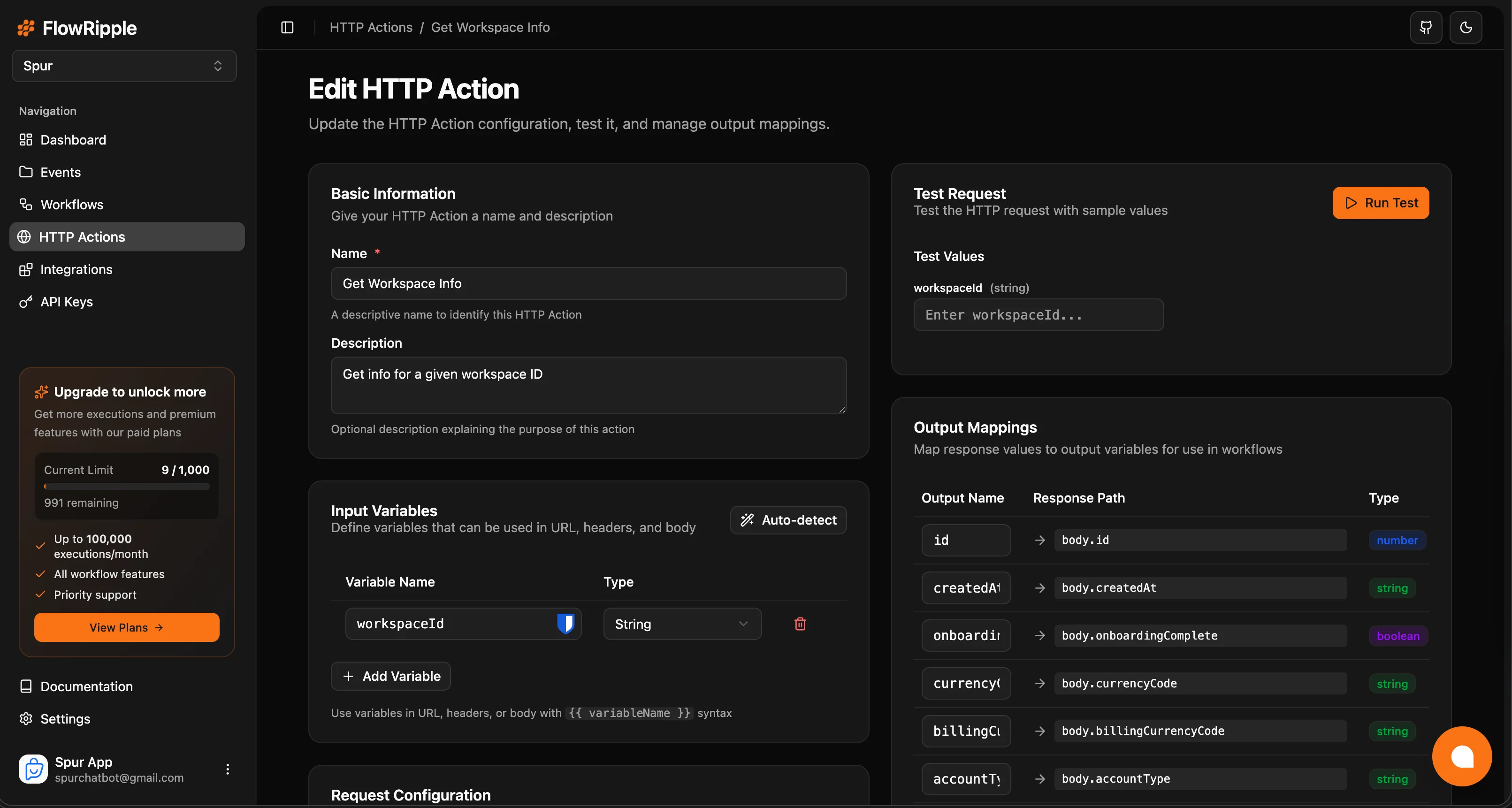
HTTP Action edit form with request configuration, input variables, test panel, and output mappings
Basic Info
Configure the action’s name and description.Request Configuration
HTTP Method
Select the HTTP method:- GET — Retrieve data
- POST — Create resources or send data
- PUT — Replace resources
- PATCH — Partially update resources
- DELETE — Remove resources
URL
Enter the full endpoint URL. You can use input variables in the URL:Headers
Add key-value header pairs. Both keys and values support input variables:Request Body
For POST, PUT, and PATCH methods, configure the request body. Body types:JSON
JSON
The most common format for REST APIs.
Form Data
Form Data
URL-encoded form data.
Raw Text
Raw Text
Plain text content.
XML
XML
XML-formatted data.
Input Variables
Input variables make your HTTP Action dynamic. They use the{{variableName}} syntax and can appear in the URL, headers, and body.
Auto-Detection
Click the “Auto-detect” button to scan your URL, headers, and body for{{variableName}} patterns. Detected variables are added to the input variables table automatically.
Manual Addition
Click “Add Variable” to manually define an input variable with a name and type.Variable Types
Authentication
Configure how the action authenticates with the target API.None
No authentication headers are added.API Key
Sends an API key in a custom header.Bearer Token
Sends a Bearer token in theAuthorization header.
Resulting header:
Authorization: Bearer <token>
Basic Auth
Sends Base64-encoded credentials in theAuthorization header.
Testing
The test panel lets you run the action with sample values before saving.1
Fill in test values
Enter sample values for each input variable in the test panel on the right side of the form.
2
Run the test
Click “Run Test”. The action executes with your sample values and displays the response.
3
Review the response
The test result shows:
- Status — HTTP status code (color-coded: green for 2xx, orange for 4xx, red for 5xx)
- Duration — Response time in milliseconds
- Response Body — Interactive JSON explorer
- Headers — Response headers
- Mapped Outputs — Values extracted by your output mappings
Output Mappings
Output mappings extract specific values from the API response and expose them as named variables in workflows.Creating Output Mappings
After running a test, click the ”+” button next to any value in the JSON response explorer. This creates a mapping with:Accessing Outputs in Workflows
Once mapped, output values are available in downstream workflow steps as:customerId, downstream steps can reference it as outputs.http.customerId.
Output mappings only work when the response structure matches the configured paths. Test thoroughly to ensure mappings extract the expected values.
What’s Next?
Using in Workflows
Add your HTTP Action to a workflow and map inputs and outputs.
HTTP Request (Inline)
Learn about inline HTTP requests for one-off API calls in workflows.